This page is private and will not come up on web searches. It contains everything you need to know about publishing content and images to the Working Options in Education website. Any queries call Lara on 07855 410204 or email lara.davis@workingoptions.org.uk.
How do I get into the CMS for the site? (If you’re reading this you’re already in, you just need your user name and password)
-
-
- https://workingoptions.org.uk/wp-admin/
Each member of staff that publishes to the website needs to set themselves up as a separate user. This is done by going to Users on the left hand black side bar. You can change your password after it has been set up. New users need to also be set up for every volunteer and every school/college so they can access resources in the secure log -in section www.workingoptions.co.uk/Resources
-
-
-
- Users > Add New > fill out details & assign role
How do I post a news post?
-
-
- Posts > Add New
How do I post a student zone post?
-
-
- Student Zone > Add New
How do I add a new fundraising event?
-
-
- Fundraising Events > Add New
How do I resize images for news and student zone posts? (what size/layout of images is needed? How to do this within the site as we don’t have Adobe Photoshop)
-
-
- Student zone – [300 w x 200 h]
- News article posts – [300 w x 200 h]
- To edit an image size:
- Click on the image you want to edit (once uploaded to the media library) > Edit Image > input correct dimensions
- Alternatively, you can use a free image-editing app such as Canva or PlaceIt
How do I add an image to a news or student zone post? (including what a featured image is and how it differs)
-
-
- To add an image to the body of the article, just drag into the ‘Visual’ text box or click ‘Add Media’
- To upload a featured image (this is what shows for the thumbnail), click Add Featured Image on the right hand side
How (and why) do I add category and tags to news and student zone posts?
-
-
- Student Zone/Posts > Categories > Add New
- To assign a category etc. to a post, select the ones you’d like to assign on the right hand-side (tickboxes)
- Student Zone/Posts > Tags > Add New
- For news posts decide which category it fits in and tick the correct box eg fundraising,
How do I change or add/remove a member of staff to the Our team section?
Pages > About > Our Team > Add Team Member
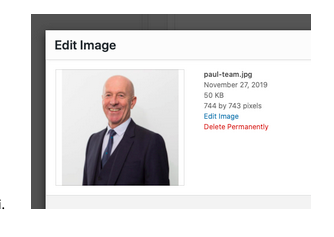
Image size for team photos needs to be consistent 744 x744 pixels, (you can resize images either in the CMS or by using Canva.com)
How do I add hyperlinks and email addresses within and outside the site in content? (include about links to external websites in a new window)
-
- To add a hyperlinked email address, use mailto:example@example.com
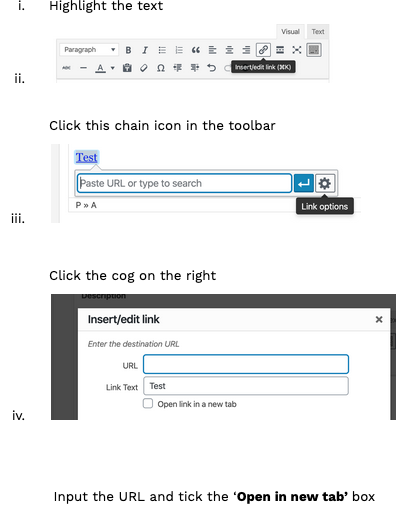
- To add a hyperlinked word, click the ‘insert/edit link’ on the text box you’re editing > input URL
- To add a hyperlinked word that opens in a new tab (always do this if linking to an external website but not if you are linking to another page in our website)
How do I save content as draft?
-
-
- Complete page/post > click Save as Draft in top right
How do I preview content before I make it live?
-
-
- Complete page/post > click Preview Changes in top right
How do I know what size image is needed for a specific page/section?
-
-
- If you click on an image in the section you’d like to edit (pencil icon), it’ll say the correct dimensions, Alternatively we’ve listed the dimensions towards the end of this doc.
What do I do if I delete something by accident? (how to access last version etc…)
-
-
- Go onto the page/post you’d like to restore > click Revisions – Browse > Restore the revision of the version you’d like
How do I add another option to the volunteer options, corporate options?
-
-
- Pages > Volunteers/Corporate > How to get involved > Add options
- Please note these must be in multiples of 4 or 6
How do I add a video to a news post or student zone post?
-
-
- Enter the video you’d like to embed e.g. on Youtube > Share > Embed > copy and paste the code
- Go onto the Post you’d like to embed it on, click the text box (make sure it’s the ‘Text’ tab, not visual), then paste the code into here.
- View in ‘Visual” to check it is displaying correctly before publishing the page.
How can I change an image on a page banner (include size of image needed for this)
-
-
- Enter a page e.g. About > Hero > Add Image
- Dimensions = 2560 x 1387
How can I change the stats in the scrolling bar (this would only be done annually)
-
-
- Theme Options > Site-wide content
How do I add a new success story and select the ones I want to show?
-
-
- Success/Volunteer Stories > Add New
- To select a story on a particular page > go to the page > scroll to the bottom > Select Success stories/Volunteer stories
How do I change content in any of the contact forms? (eg add extra drop down options, if they need to go to a different email address or you want to change the thank you message they receive.)
-
-
- Contact > select form >
- Form > (edit dropdown options where it says [select* reason…]
- Mail > change To email
- Messages > edit messages
How do I change content or links or logos in the footer of the site?
-
-
- Footer text: Theme Options > Branding
- Footer logos: Partners > Add New
- Footer links: Appearance > Menus > select menu ‘Footer Links’ > make edits > Save Menu
Images sizes needed throughout the site
-
- Student zone posts
- Featured Image: 300 w x 200 h
- News article posts
- Featured image: 300 w x 200 h
- Fundraising Events posts
- Featured image: 1016 x 802
- Success Story posts
- Featured image: 2093 x 945
- Volunteer Story posts
- Featured image: 1512 x 996
- About
- Hero: 2560 x 1387
- What we do: 918 x 892
- Our team: 744 x 744
- Dashboard
- Hero: 2560 x 1387
- Get Involved
- Hero: 2560 x 1387
- What we do: 2560 x 1435
- How to get involved: 171 x 171
- Supporters: 249 x 249
Corporate
-
-
-
- Hero: 2560 x 1387
- Partnering benefits: 1376 x 1493
- How to get involved: 171 x 171
- What we do: 2560 x 1435
- How to get your company involved: 171 x 171
- Corporate partners:
-
- Volunteers
- Hero: 2560 x 1387
- Partnering benefits: 1372 x 1493
- How to get involved: 171 x 171
- What we do: 2560 x 1435
- Volunteer stories: 744 x 743
- Our volunteers: 291 x 108
- How to get your company involved: 171 x 171
- Home
- Hero: 2560 x 1435
- Schools & colleges: 1200 x 800
- Video thumbnail: 1032 x 638
- Student zone: 1496 x 1054
- Schools and Colleges
- Hero: 2560 x 1706
- How we support: 1379 x 941
- What we do: 2560 x 1435
- How to get involved: 171 x 171
How do I add a document to the dashboard for different audiences? (this is a password protected area for educators to access lesson plans and volunteers to access files. They must be set up as a User in the correct category first) And can I add files in different document formats to this area of the site?
-
-
-
- Downloadable Files > then either…
- Add New (this’ll create a new sub-section e.g. Skills Workshop downloads) > fill out page, Add File, tag category > Publish
- or, click a pre-made sub-section > Add Files > Publish
- To add a new file, similar to adding a new image, just just click ‘Add File’, then upload a powerpoint, or word document file or PDF for example.
How do I add an image to the media library?
-
- Media > Add New


